Addbase3dmodel
Start creating
English

Base planning

How to add base 3d model online free without guessing

If you want to add base 3d model online free, start by describing the base you need, then check whether the tool can actually modify your existing mesh. Addbase3dmodel can help you frame a base concept, but this page does not assume that editing, export, or access is free.

Check access and export terms
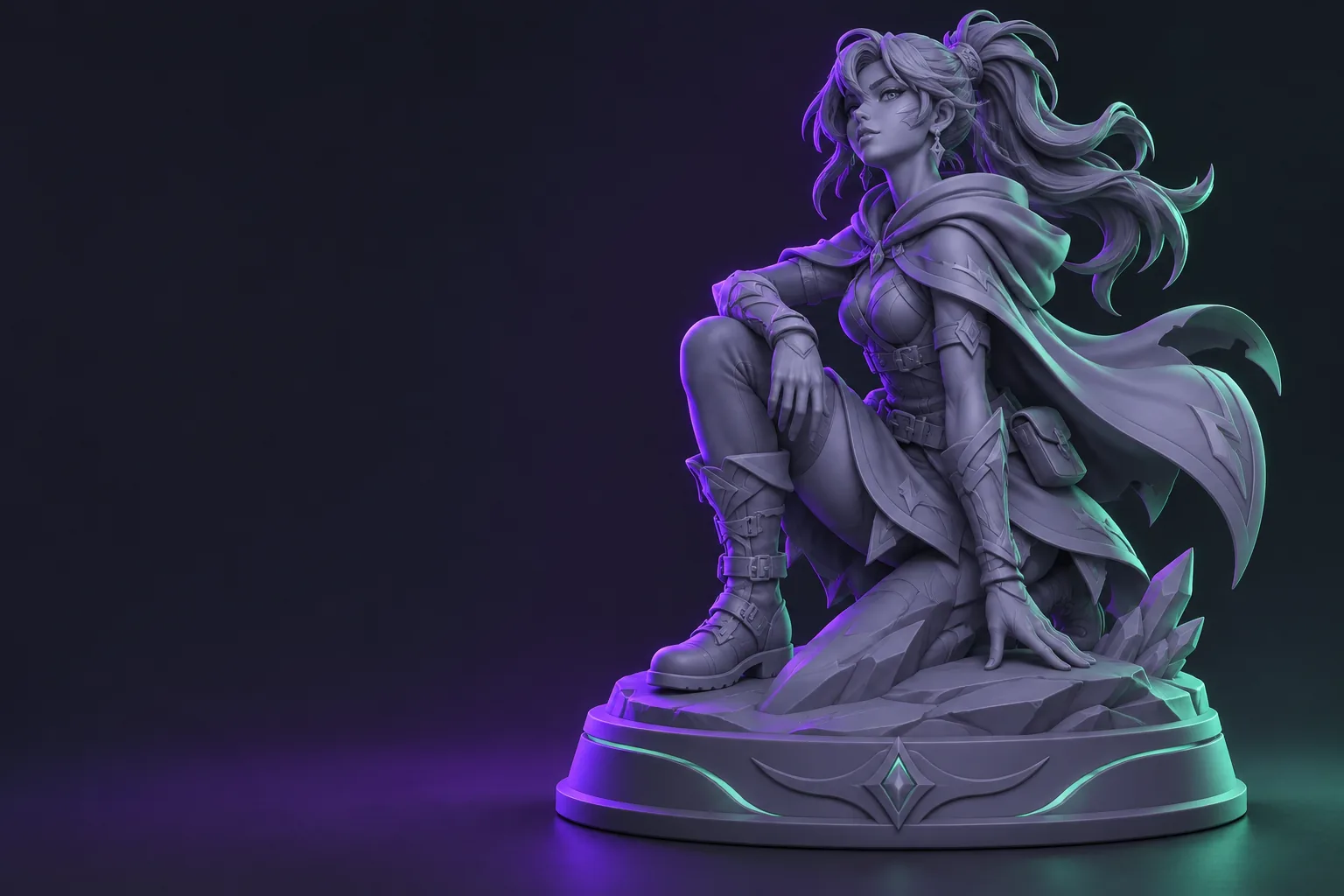
Illustration of a 3D object presented with a base

Prerequisites

Know whether you need a visual concept or an edited file. Keep the original model, its dimensions, and its intended use at hand before choosing a workflow.

One full run-through

Use this example to separate the design decision from the file-editing task: a small figurine needs a round display base that stands flat.

  1. 1

    Describe the intended base

    State that the figurine stands on two feet, needs a low circular base, and should have a flat underside. Include a rough width relative to the figure rather than relying on the word pedestal alone.

  2. 2

    Inspect the proposed shape

    Check whether the base extends beyond the feet, looks centered, and does not hide important details. Revise the description if the result is merely decorative or appears to float below the figure.

  3. 3

    Verify the actual mesh

    If you need a usable 3D file, open it in an editor or slicer. Confirm that the base touches the figure, is joined as intended, lies flat on the build plane, and survives a slice preview before printing.

Options table

Concept planning and mesh editing answer different questions. Choose based on the deliverable you need, not just whether an online page appears convenient.

Base concept
Mesh editing

Starting input

Base concept

A written description of the object and desired base

Mesh editing

The existing 3D model file

Main decision

Base concept

Shape, proportion, and visual placement

Mesh editing

Geometry, dimensions, and attachment

Existing mesh

Base concept

A concept alone does not alter it

Mesh editing

Can be modified in a suitable editor

Flat underside

Base concept

Must be requested and visually checked

Mesh editing

Can be measured against the build plane

Print readiness

Base concept

Cannot be established from appearance alone

Mesh editing

Requires geometry checks and a slice preview

Access or export cost

Base concept

Check the destination tool's current terms

Mesh editing

Depends on the editor and workflow chosen

What fails

The word free does not establish what a tool lets you edit or take away. These are the checks most likely to prevent a promising concept from becoming a usable base.

A visual is mistaken for an edited file

A convincing image cannot confirm that your original model was changed or that the base is part of its geometry.

Workaround

Check for an actual model file and inspect the mesh in an editor before treating the task as complete.

The base does not touch the object

A small visible gap, weak contact area, or intersecting but unjoined surfaces can make the result unsuitable for the intended use.

Workaround

Inspect the join from multiple angles and verify connected geometry where a single solid is required.

Free access is assumed

An online tool may distinguish between trying a workflow, editing a file, and exporting a result. This page cannot establish its current terms.

Workaround

Review the destination's access and export conditions before committing your model or time.

The base looks stable but will not print well

A narrow footprint, uneven bottom, or unsupported detail may only become obvious during slicing.

Workaround

Check dimensions and build-plate contact, then review the sliced layers before printing.

Continue with a base concept

Put your base idea into words

Describe the object, the base shape, where they should meet, and whether the underside must sit flat. Use the result to guide your next decision, then verify any file-editing or export capability at the destination rather than assuming the concept is a finished mesh.

Explore base concept
  • Keep a copy of your original model
  • Check access and export terms
  • Inspect geometry before printing

Frequently asked questions

Some workflows may let you explore a base idea online, but that does not establish that editing your existing mesh or exporting it is free. Check the specific tool's current terms and confirm what file, if any, you receive.

A concept communicates the intended shape and placement. A printable model needs suitable geometry, contact between the base and object, a flat build surface where required, and a successful slice preview.

You can describe a base without uploading a model when you are planning its appearance. To attach a base to a particular mesh, you need access to that mesh in a workflow capable of editing it.

Do not judge solely from a rendered view. Open the resulting model in a suitable editor, inspect the contact area and geometry, and check the slice preview if you intend to print it.

Open 3D studio Start creating